 Exhibition
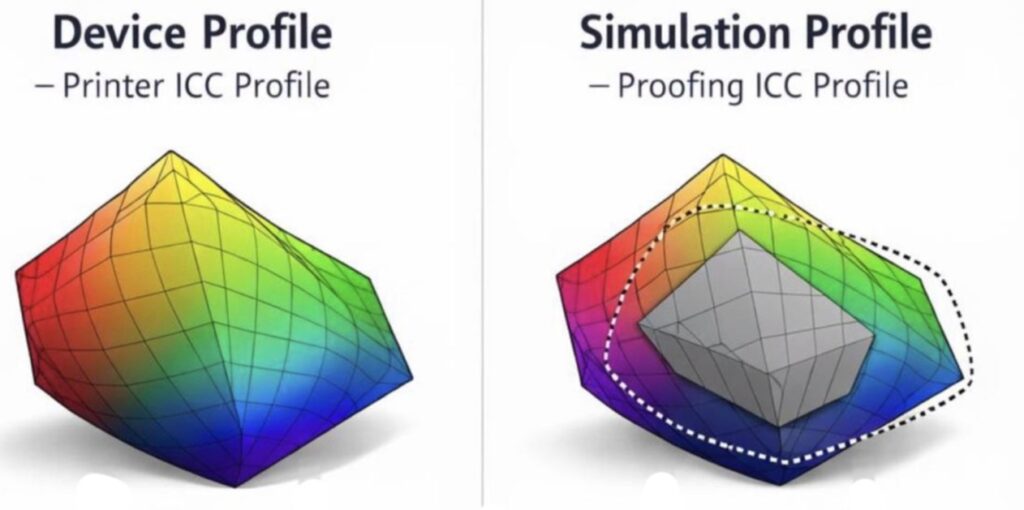
Understanding the difference between ICC profiles is vital for print accuracy. The Device Profile describes a printer’s actual physical capabilities, while the Simulation Profile defines the targeted industry standard. Matching these correctly ensures predictability; confusing them leads to inconsistent color. Proper management aligns hardware reality with the client’s expectations.
Countless times in print rooms and design studios across the UK and beyond, a production manager or a prepress operator will look at a digital proof, then at the press sheet, and scratch their head. “We used the profile,” they say, with that familiar tone of frustration. “Why doesn’t it match?”
When we start digging into the details in the process—we frequently find that the confusion lies in a fundamental misunderstanding of the two distinct roles ICC profiles play in a workflow, the Device Profile and the Simulation Profile.
Let’s be clear: while they are both technically ICC files (using the same file extension), their functions are diametrically opposed. Confusing them is like confusing a map of where you are with a map of where you want to go. To achieve the holy grail of print—predictability and standardisation—we must understand the difference.
Device Profiles
First, let us address the Device Profile. often describe this as the “fingerprint” or the DNA of a specific piece of hardware.
A device profile (often referred to strictly as an Output Profile in RIP’s) describes the actual colour capability of a specific printer, running a specific ink set, on a specific substrate, with a specific resolution and screening setting. It is the reality of the digital press.
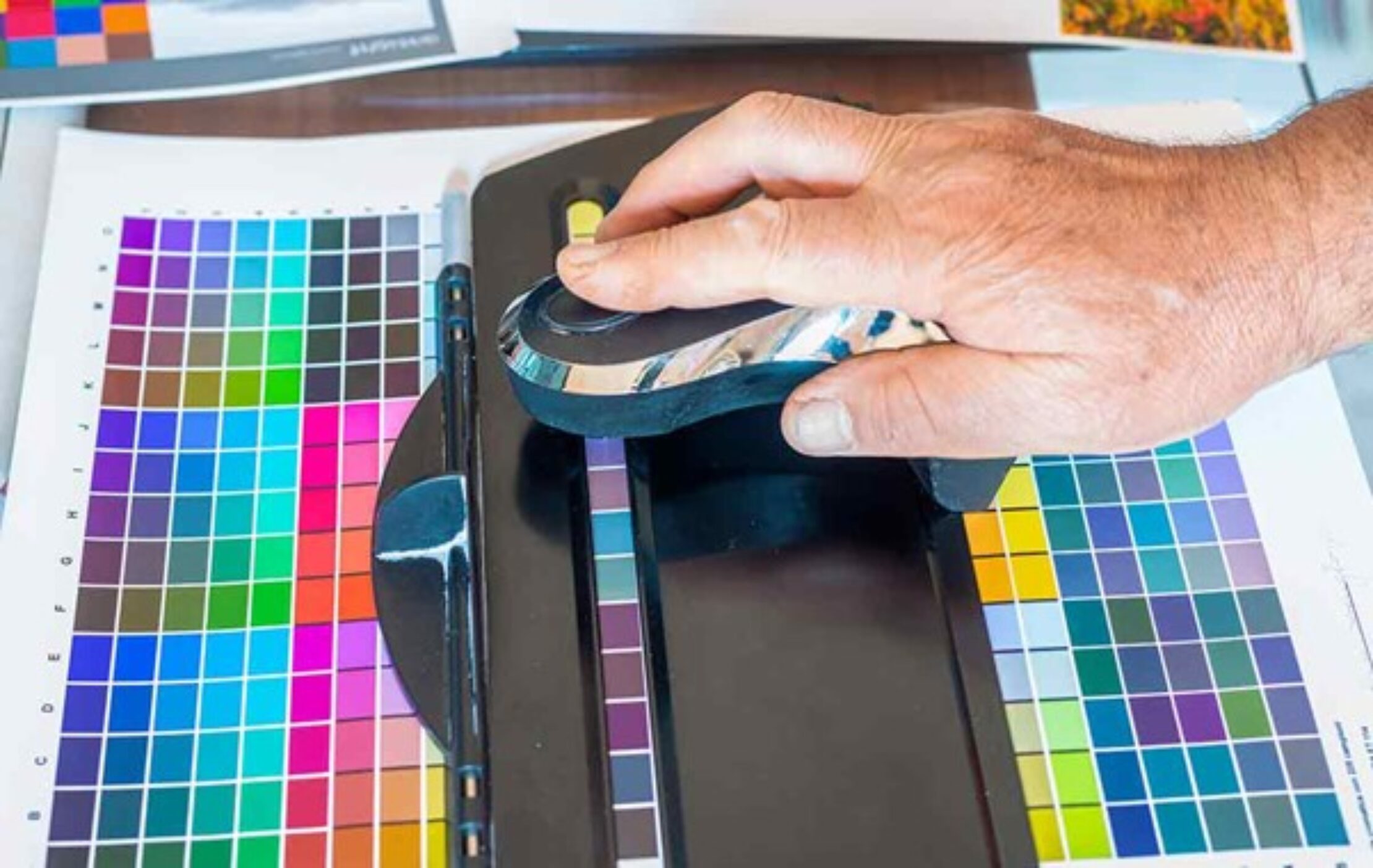
When we fingerprint a press or a digital proofer to create this profile, we are asking a simple scientific question: “If I send you these specific CMYK numbers, what colour do you actually produce?” We print a test chart (like the IT8.7/4 or the newer TC1617), measure the resulting patches with a spectrophotometer, and the profiling software builds a lookup table.
This profile says, “My 100% Cyan is actually a bit greenish,” or “My 50% Magenta dot gain is higher than standard.” It captures the quirks, the limitations, and the unique characteristics of that physical device.
The Device Profile is descriptive. It tells the Color Management Module (CMM) what the device is doing, not necessarily what you want it to do. If you have a wide-gamut inkjet printer, its device profile will describe a massive colour space, far larger than a standard offset press. If you print directly to this profile without instruction, your colours might be vibrant, but they will likely be wrong, oversaturated and inconsistent with your client’s brand standards.
If you wish and a using digital printer a very wide CMYK you can use to device as simulation profile to give maximum gamut from your printer. This is often used for Fine Art word were the maximum gamut gives an better result.
Simulation Profiles
Enter the Simulation Profile. If the Device Profile is the reality, the Simulation Profile is the ambition. It is the target. In many workflows, this is called the Reference Profile.
In a professional workflow conforming to ISO 12647-2 (for offset) or ISO 12647-7 (for digital proofing), the Simulation Profile represents the industry standard condition you are trying to mimic. Common examples include ISO Coated v2 (FOGRA39), PSO Coated v3 (FOGRA51), or GRACoL 2013.
This profile does not describe the machine sitting in the corner of your room. It describes a theoretical, standardised press condition. It is the “contract” between the buyer and the printer. The client says, “I don’t care if you print this on a Heidelberg litho press, an HP Indigo, or a large-format inkjet; I want the final result to look like PSO Coated v3.”
Therefore, the Simulation Profile acts as the output in the colour transformation chain. It defines the colour space of the incoming file. It tells the RIP, “This RGB image or this CMYK image should look like this specific shade of blue found in the FOGRA51 dataset.
How They Work Together
The magic of colour management—and the source of so many headaches when it goes wrong—happens in the interaction between these two.
Imagine you are running a digital proofing system. You are using a high-end Epson inkjet printer.
- The Simulation Profile (Source) tells the system what the file should look like (e.g., “This is a brochure for a glossy offset press”).
- The Device Profile (Destination) tells the system what the Epson printer is capable of (e.g., “I have these inks and this paper”).
The Color Management Module (CMM) sits in the middle. It calculates the difference. It effectively says: “The Simulation Profile asks for a Red of Lab 50/70/50. My Epson Device Profile says to get that specific Lab value, I need to mix 0% Cyan, 90% Magenta, and 95% Yellow.”
If you remove the Simulation Profile, the system has no target. It just pushes the numbers through to the device, and you get “wild,” unmanaged colour. If you use the wrong Device Profile, the system calculates the recipe based on incorrect ingredients, and the proof fails to match the press.
Where this go wrong most often is in the Digital Front End (DFE) or RIP settings.
Many operators mistakenly set their “Simulation” or “Reference” profile to match their “Output” profile. This is a null loop. If you tell a digital press, “Simulate yourself,” you are effectively turning off colour management for the incoming data. You are accepting the raw behaviour of the machine.
For a true “fit-for-purpose” workflow, you must separate the two:
- Input/Simulation: What is the customer expecting? (Usually a standard like FOGRA51).
- Output/Device: What is the machine calibrated to right now?
This is particularly paramount in modern digital printing. A modern inkjet press has a gamut that might not look exactly like offset litho. If you want to sell that print as a “commercial print replacement,” you must use a Simulation Profile (like FOGRA51) to restrict and map the inkjet’s wide gamut down to the visual appearance of offset.
Without that simulation, you are selling a different product—one that might look “better” (more colourful) but will be rejected by a brand manager who needs their corporate red to match the brochure they printed last year.
A Note on Device Link Profiles
To add a layer of sophistication—something I highly recommend for robust production environments—we often combine these two into a Device Link Profile.
A Device Link permanently fuses the Simulation Profile (Source) and the Device Profile (Destination) into a single file. Why do this? Control.
When a standard CMM converts from Simulation to Device, it often converts pure Black text (K) into a mix of CMYK (rich black), which causes registration issues and text fuzziness. A Device Link profile allows us to “lock” the black channel, ensuring that 100% Black in the simulation remains 100% Black on the device, while still colour-managing the images. It is the most robust way to ensure that what you simulate is what you print, with the technical integrity of the file preserved.
The Practical Takeaway
This is often just a lack of process control. Check your RIPs today.
- Is your Device Profile current? If you have changed paper stock or ink batches and haven’t re-linearised or re-profiled, your “fingerprint” is essentially a lie.
- Is your Simulation Profile correct? Are you still using FOGRA39 (ISO Coated v2) when your client is designing for FOGRA51 (PSO Coated v3)? These standards shift, and using the old one on OBA-rich paper is a recipe for validation failure.
In conclusion, the Device Profile is your machinery’s reality; the Simulation Profile is your client’s dream. Your job is to make the reality match the dream. It is not magic; it is simply good, standardised practice.
Discover upcoming events
Exhibition